How to add live captions to AWS MediaLive without re-encoding
Add live captions to an AWS Elemental MediaLive channel by placing SyncWords between MediaLive and MediaPackage. Architecture, setup steps and options.
Your MediaLive channel is built. Inputs, encodes, the MediaPackage endpoint, CloudFront in front. Then someone asks for captions, and the options on the table look like a step backwards: a hardware caption encoder in a rack you were trying to retire, or a second encode pass you never wanted.
There is a shorter route. SyncWords sits between MediaLive and MediaPackage, reads the segments MediaLive already produced, and adds a subtitle track next to them. Your video is never decoded or encoded again. Nothing changes upstream of MediaLive, and nothing changes for your players.
This post is the AWS walkthrough. If you want the background first (the five places captions can join a chain, the formats, how delay works), start with the guide to live captioning for broadcast and streaming. We won't repeat it here.
The architecture: one extra hop
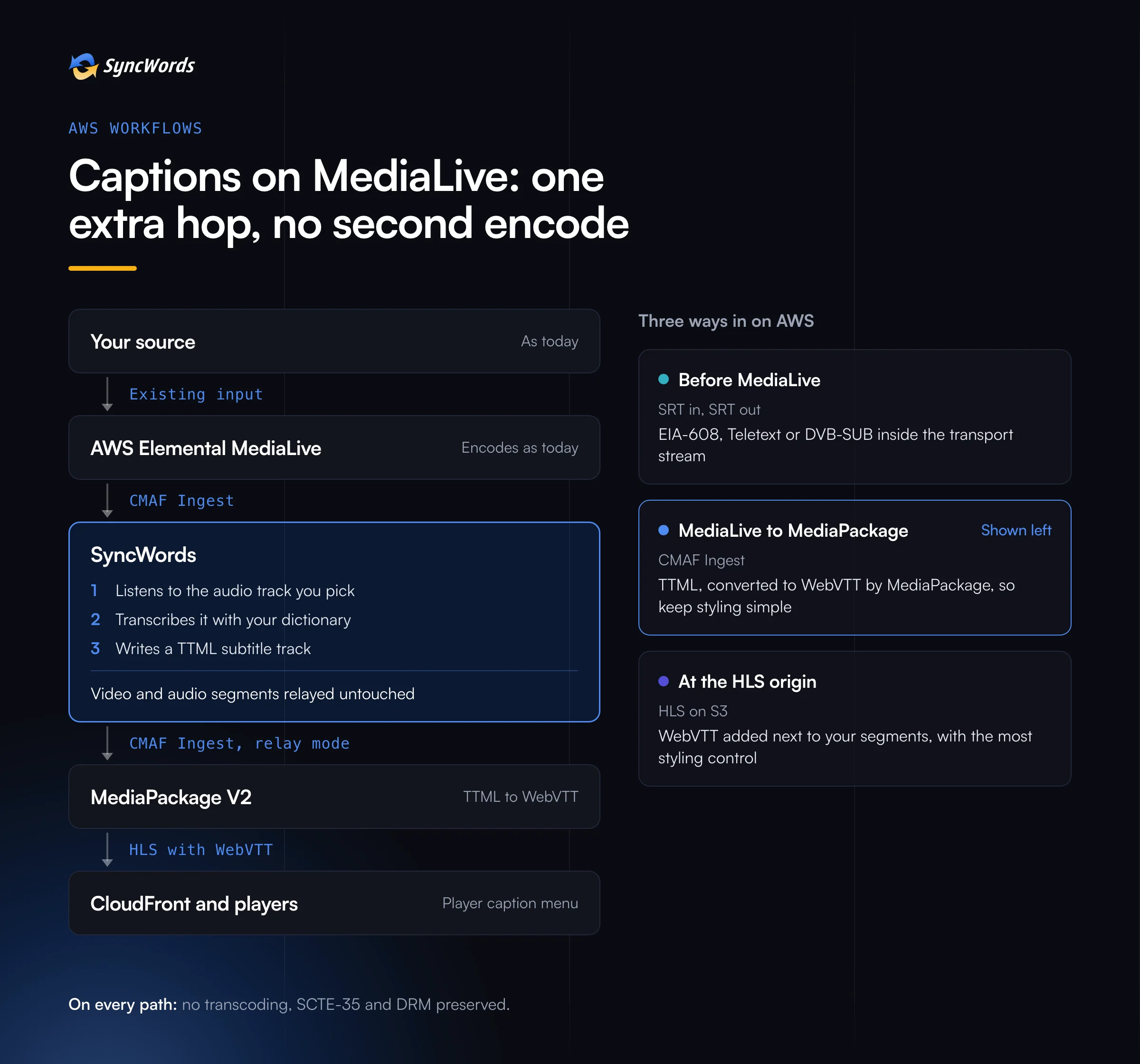
Read it left to right.
- MediaLive encodes your channel as it does today, and sends it out over CMAF Ingest.
- SyncWords receives those segments, takes the audio track you choose, transcribes it, and writes a TTML subtitle track. The video and audio segments are passed on exactly as they arrived.
- MediaPackage V2 receives the original segments plus the subtitle track on the same CMAF ingest it would have used anyway. It packages HLS and converts our TTML to WebVTT.
- CloudFront and your players see an ordinary HLS stream with a WebVTT track. Viewers turn captions on from the player's own caption menu.
The only change to your AWS setup is the destination of one output group.
Step by step
1. Choose the audio track
Captions are only as good as the audio they hear. If your source carries several tracks (a clean commentary mix, an international feed, a stadium bed), decide which one SyncWords should listen to. You can select it precisely: by track, and by channel within the track.
2. Create a SyncWords service for the channel
One service per MediaLive channel, created once. Set:
- Source: CMAF Ingest. SyncWords gives you the ingest URL.
- Transcription: the source language and ASR engine. Speechmatics is the default.
- Dictionary: presenter names, team names, sponsors, acronyms. This is the step that most improves accuracy on the day, so give it an owner.
- Output: CMAF Ingest to your MediaPackage V2 channel.
The service keeps its dictionary, styling and output settings between runs. After this you start, stop and schedule it from the dashboard or the API without touching configuration again, which suits 24/7 channels and event channels alike.
3. Give SyncWords access to MediaPackage
SyncWords can write to MediaPackage V2 by assuming an IAM role you create in your own account, so you grant exactly the access it needs and can revoke it whenever you like. No bucket or channel has to be opened to SyncWords' own role.
4. Point MediaLive at SyncWords
In your MediaLive channel, change the destination of the CMAF Ingest output group from the MediaPackage ingest endpoint to the SyncWords ingest URL. Encoding settings stay as they are.
5. Use relay mode
SyncWords can write CMAF in two ways: append, where it adds only the subtitle track, or relay, where it passes the whole stream through with the subtitle track added. Append needs a packager that copes gracefully with a track disappearing, and MediaPackage V2 does not. So on this path, use relay. The video is still not transcoded; it is forwarded segment for segment.
6. Keep the styling simple
MediaPackage converts TTML to WebVTT, and only the styling and positioning it understands survives the trip. Set a sensible line length and bottom margin in SyncWords and leave it there. If you need precise placement or richer styling, look at the HLS origin option further down.
7. Set the buffer
The buffer holds your video back so captions can catch up. CMAF works in whole segments, and the segment duration already buys processing time, so a captions-only channel needs little extra. If you add translated subtitles, plan a longer buffer: translation takes longer than transcription. Our engineers size it with you per channel, because it is a trade between how live the picture feels and how closely captions track speech.
8. Test on the real player
Play the MediaPackage output in the player your viewers use, not a preview window. Check that the caption menu shows the right language label, that captions sit clear of your graphics, and that a name from the dictionary comes out right. Then schedule the service to start with the channel.
Two other ways in on AWS
The CMAF path suits most MediaLive-to-MediaPackage channels. Two other positions are worth knowing, because the right one depends on what your viewers' devices need.
Before MediaLive, over SRT. If your output has to carry broadcast caption formats (embedded EIA-608, Teletext, DVB-SUB), SyncWords can sit on the contribution feed instead. You send SRT to SyncWords, and it returns an MPEG-TS stream with captions embedded and every language on its own PID, which MediaLive or MediaConnect ingests as usual. MediaLive then treats them as source captions through its normal caption settings.
After packaging, at the HLS origin. If MediaLive writes HLS straight to S3 behind CloudFront, SyncWords can read that HLS and add WebVTT tracks next to it, without copying or republishing your video segments. Because nothing converts the subtitles afterwards, this is the position with the most styling and placement control.
What survives the trip
- Ad markers. SCTE-35 markers and SSAI survive on every output, so ad breaks line up as they did before.
- Encryption. DRM and AES-128 are preserved.
- Redundancy. SyncWords runs dual-pipeline A/B failover, with primary and backup resources in any AWS region you choose.
- Procurement. SyncWords is an AWS technology partner and transactable on AWS Marketplace, so it can sit on your existing AWS bill. More in SyncWords Live AI captioning and dubbing now on AWS Marketplace.
Adding languages later
The same service can produce translated subtitles from the same transcript. Each language becomes its own subtitle track in the HLS that MediaPackage serves, so viewers pick it from the same caption menu.
See it on your channel
Engineering-led integrations typically take days. If you run MediaLive today, bring your channel layout to a call and we will map which of the three positions fits it, then set it up with your team.
Caption your MediaLive channel without re-encoding
Book a Demo